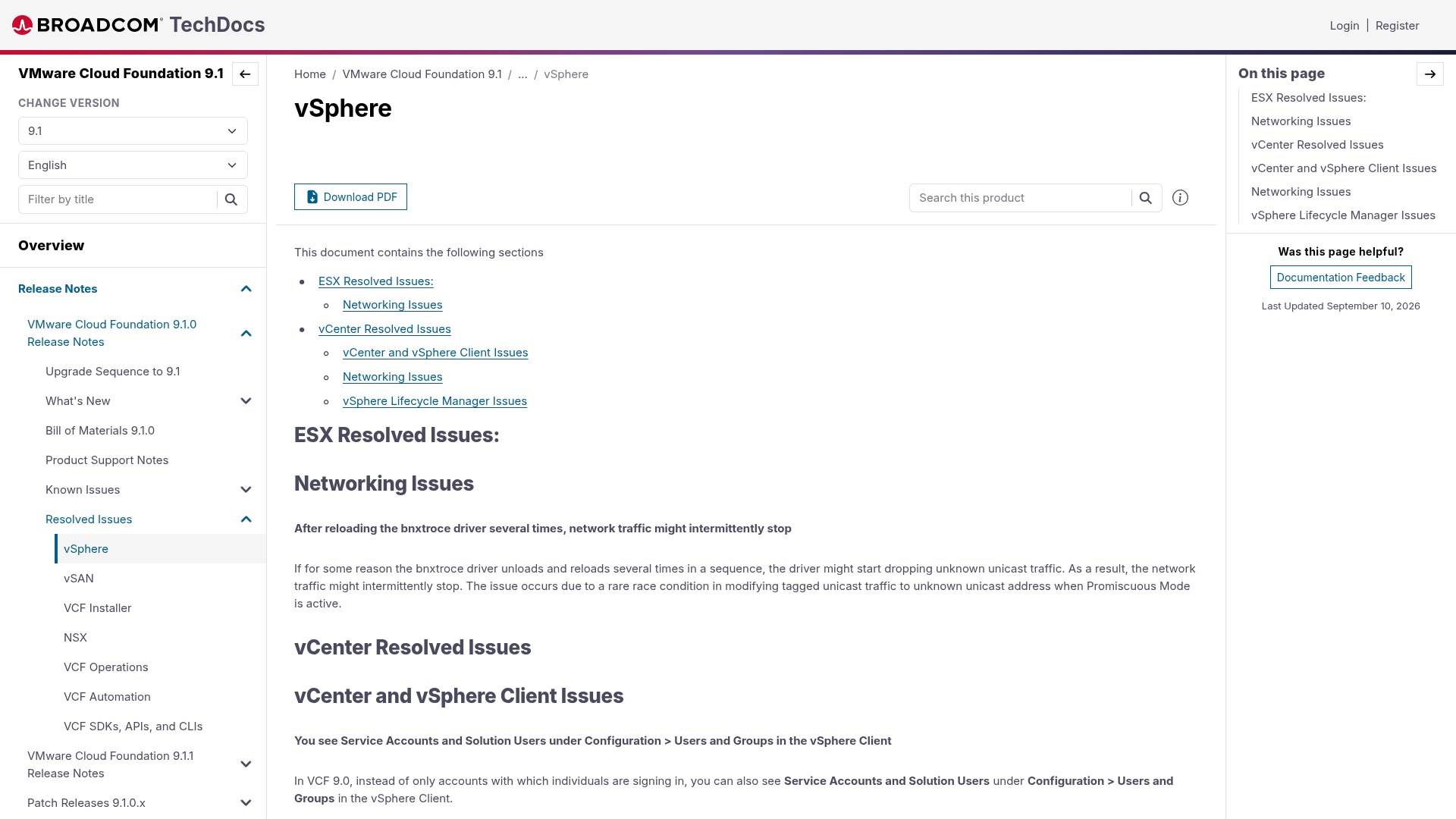
Broadcom publishes two lists with every VMware Cloud Foundation release. The Resolved Issues list tells you what stopped hurting; the Known Issues list tells you what is still waiting for you in production. The second list is the one worth reading before you schedule an upgrade window. This article walks through the vSphere known issues published for VMware Cloud Foundation 9.1.0 – what you actually see, why it happens, and what you can do about it today.
How the list is organised
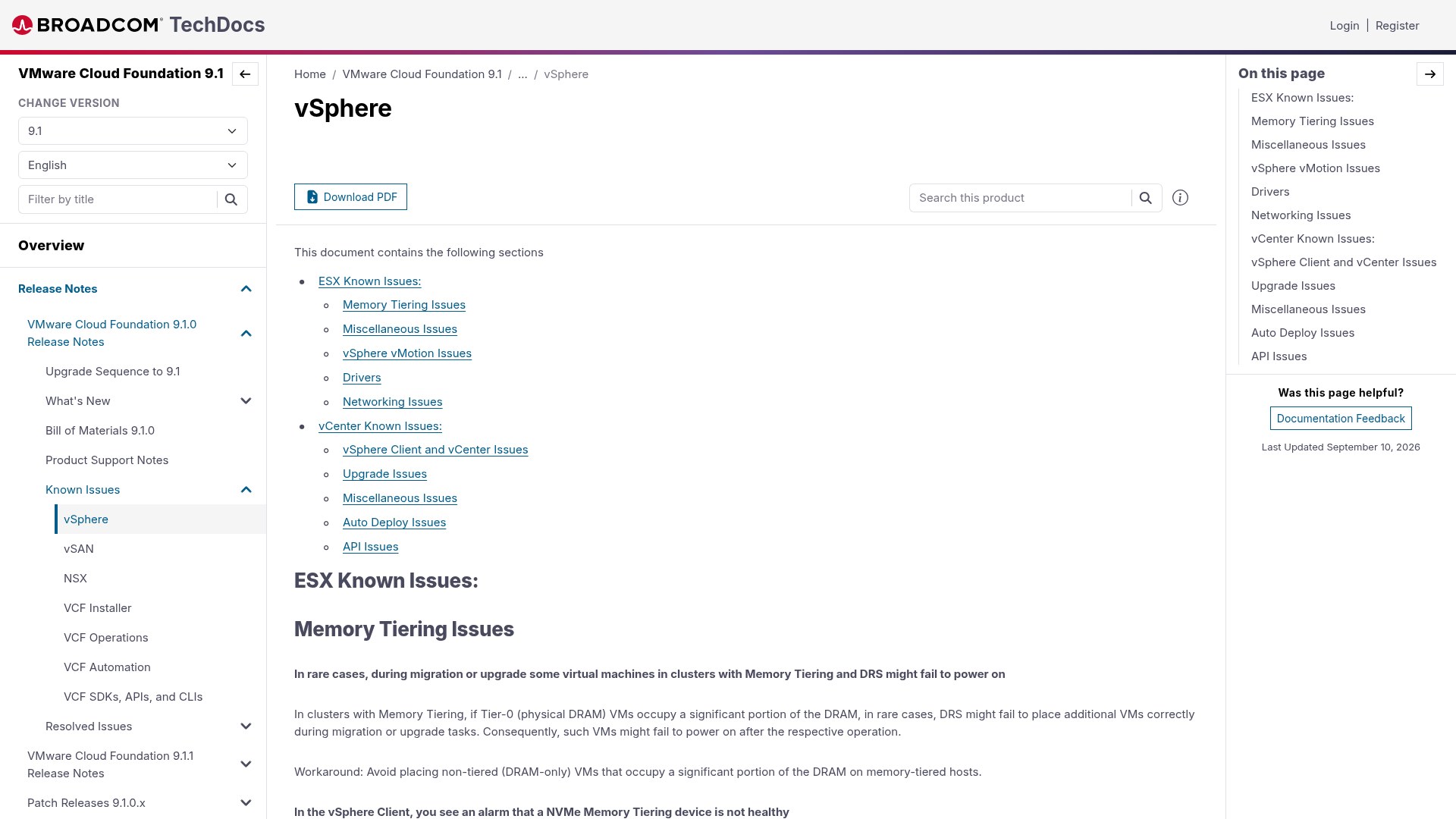
The vSphere known issues page splits into two halves. Everything under ESX Known Issues affects the hypervisor – memory tiering, vMotion, drivers and networking. Everything under vCenter Known Issues affects the management plane – the vSphere Client, upgrades, Auto Deploy and the API. Knowing which half a symptom belongs to saves you an hour of log reading.
| Half | Sections | Typical blast radius |
|---|---|---|
| ESX | Memory Tiering, Miscellaneous, vMotion, Drivers, Networking | Single host or a VM workload |
| vCenter | vSphere Client, Upgrade, Miscellaneous, Auto Deploy, API | Whole fleet or a maintenance window |
1. Memory Tiering: VMs fail to power on after migration or upgrade
Section: ESX → Memory Tiering Issues.
What you see: in a cluster with Memory Tiering and DRS enabled, virtual machines fail to power on after a migration or an upgrade operation completes.
Root cause: when Tier-0 virtual machines – the ones pinned to physical DRAM – occupy a large share of host DRAM, DRS can place additional VMs incorrectly during the operation. The placement looks valid to DRS but leaves no DRAM headroom, so power-on fails afterwards.
Workaround: keep non-tiered, DRAM-only VMs off memory-tiered hosts when they consume a significant portion of DRAM. In practice that means a DRS VM/host anti-affinity rule rather than trusting the scheduler.
2. "NVMe Memory Tiering device is not healthy" – and the host goes with it
What you see: an alarm in the vSphere Client:
<ESX host> NVMe Memory Tiering device is not healthyRoot cause: on a host running Memory Tiering with a single NVMe device, if that device fails while a VM resident on it migrates off the host, the host itself can fail. One device means no redundancy for the tiering backing store.
Workaround: put the host into maintenance mode, physically replace the NVMe device, then re-point the tiering configuration:
[root@esx01:~] esxcli memtier config set -d <new_device>
[root@esx01:~] esxcli memtier config get
If you are designing a memory-tiered cluster now, budget for two NVMe devices per host. A single device is a single point of failure for the whole host, not just for the tier.
3. vSphere HA failover fails in Memory Tiering clusters
What you see: on the Summary tab, the alarm vSphere HA virtual machine failover failed, often followed by vSphere HA stopped trying to restart this VM because the maximum VM restart count was reached. Some VMs stay powered off after a host failure.
Root cause: HA needs Tier-0 (DRAM) capacity to satisfy VMs with memory reservations. If no surviving host has enough DRAM – even when the cluster's total memory looks plentiful because much of it is tier-1 – the restart fails. It only bites clusters that mix tiered VMs with DRAM-only VMs such as Low Latency, Prealloc and Fault Tolerant workloads.
Workaround: restore real DRAM headroom, by adding a host or powering off DRAM-hungry VMs, then power the failed VMs on manually – HA will already have given up on them.
4. PSOD on swap-out: ASSERT bora/vmkernel/mem/swap.c:1201
Section: ESX → Miscellaneous Issues.
What you see: a purple diagnostic screen carrying:
ASSERT bora/vmkernel/mem/swap.c:1201Root cause: an invalid machine page number (MPN) is accessed during a swap-out while the host is transiently in a low memory state. Broadcom is explicit about the conditions that must line up:
- the host is in a low memory state – typically under 2% free consumed memory;
- the affected VM is encrypted; and
- a trigger event occurs – power-on, vMotion, VM resume, or Fast Suspend and Resume (FSR).
Workaround: do not drive encrypted VM operations while the host is short on memory. Check the state before you start a migration wave:
[root@esx01:~] esxcli system memory stats get
[root@esx01:~] memstats -r comp-stats -u mb -s name:memSize:memSizeFree
If free memory is close to the low threshold, move a workload off first, then migrate the encrypted VMs.
5. Nested ESX hosts change IP address after suspend, resume or snapshot revert
What you see: a DHCP-configured nested ESX host silently picks up a new IP after you suspend, resume or revert a snapshot, and management connectivity drops.
Root cause: NTP synchronisation after the resume introduces a large time jump. The DHCP client's renewal timer fires against the wrong clock, the renewal misses the window, the lease expires and the address is released and reassigned.
Workaround: use a stable NTP source and lengthen both the lease duration and the renewal timers so a transient jump cannot consume the whole renewal margin. For lab and nested environments, static addressing removes the problem outright.
6. --led-state error not supported on LSI and Broadcom controllers
What you see:
[root@esx01:~] esxcli storage core device set -d naa.xxx --led-state error
Unable to set LED state for device naa.xxx: Not supported!
Root cause: the lsuv2-lsiv2-drivers-plugin does not implement the ERROR LED operation on lsi_mr3, lsi_msgpt3, lsi_msgpt35 and bcm_mpi3 controllers. LED control from the vSphere Client is unaffected.
Workaround: use the locator LED from the CLI, or drive the LED from the vSphere Client:
[root@esx01:~] esxcli storage core device set -d naa.xxx --led-state locator --led-duration 100Worth knowing before a data-centre visit: if your runbook says "flag the failed disk with the error LED", it will fail on these controllers and you will be hunting bays with a torch.
7. vMotion blocked for NVIDIA Enhanced DirectPath I/O across mismatched switches
Section: ESX → vSphere vMotion Issues.
What you see: you cannot migrate a VM with an Enhanced DirectPath I/O device from one distributed switch to another when the two switches have a different number of uplinks. Affects devices backed by NVIDIA BlueField-3 and ConnectX-7.
Root cause: NVIDIA firmware does not support vMotion between configurations with different uplink settings. This is a device-firmware limitation, not a vSphere scheduler bug.
Workaround: none. Standardise uplink counts across the distributed switches that host accelerated workloads. It is a design decision, so make it before the hardware is racked.
8. Purple screen from an IOMMU fault during RDMA writes
Section: ESX → Drivers.
What you see: a host connected through a Cisco N9K switch fails with a blue/purple screen and an error containing PTE not set to allow Write, or the RDMA connection simply times out.
Root cause: the target node of an RDMA Write can raise an IOMMU fault when the operation uses DMA-based memory regions (DMA MR) and the switch QoS for RoCE is not configured correctly.
Workaround: none from VMware – the prevention is on the fabric:
- run a supported N9K model on current firmware;
- configure RoCE QoS per the Cisco guides – PFC and ECN, not best effort;
- avoid DMA MR based RDMA writes. The Cisco
nenicdriver supports NVMe over RoCEv2 only, which uses FRMR.
9. ConnectX-7 four-port adapters lose VM traffic in a LAG
Section: ESX → Networking Issues.
What you see: VMs on Virtual Functions from an NVIDIA ConnectX-7 four-port card lose traffic, and vmkernel.log fills with:
<NMLX_ERR> 0000:46:00.0: nmlx5_CoreCreateLag:56 command failed, status bad parameter(0x3), syndrome 0xf460ff
<NMLX_ERR> nmlx5_core: 0000:46:00.0: nmlx5_CoreCreateLag:59 - Create LAG command fails with error: Failure
<NMLX_ERR> nmlx5_core: 0000:46:00.0: nmlx5_en_LagInit:237 - Unable to create lag: Failure
Root cause: the four-port card cannot do hardware LAG with a mismatched port count. Only LAGs whose member count matches the HCA port count are supported – a four-port HCA needs a four-port LAG.
Workaround: none. Either build the LAG with all four ports or drop the LAG and use standard teaming for the VF-backed workloads.
10. NFS v4.1 mounts fail with NFS4ERR_CLID_INUSE
What you see: a new NFS v4.1 datastore mount fails with NFS4ERR_CLID_INUSE.
Root cause: each NFS v4.1 client is a client ID, and the server keeps the authentication state for that client and session. Changing the vmknic binding, changing nConnect, or mounting a second datastore from the same server with a different security flavour creates a new connection with a mismatched security mechanism. The server rejects it.
Workaround: use the same security flavour and the same vmknic binding for every connection to a given NFS v4.1 server. Broadcom documents this in KB 370714.
11. vCenter: password sync with SDDC Manager is lost
Section: vCenter → vSphere Client and vCenter Issues.
What you see: after you change administrator@vsphere.local in the vSphere Client or through the vCenter API, the vCenter instance shows as Disconnected in the SDDC Manager vCenter grid under Security > Password Management.
Root cause: the password change bypasses the VCF password management workflow, so SDDC Manager and VCF Operations keep the stale credential.
Workaround: in that same grid, select the vCenter account and click Remediate Password. Better still: rotate VCF credentials from SDDC Manager, never from the vSphere Client.
12. "Not connected to a license server" banner during the upgrade
What you see: during an upgrade to vCenter 9.1:
One or more vCenter instances are not connected to a license server. To avoid service
interruption, verify that the vCenter instance is connected to a license server.
Root cause: the connected VCF Operations instance has not yet been upgraded to 9.1 and the license server is not deployed. The banner is expected behaviour mid-sequence, not a fault.
Workaround: follow the documented component upgrade order for 9.1 and the banner clears once VCF Operations catches up. This is the single best argument for reading Upgrade Sequence to 9.1 before you touch anything.
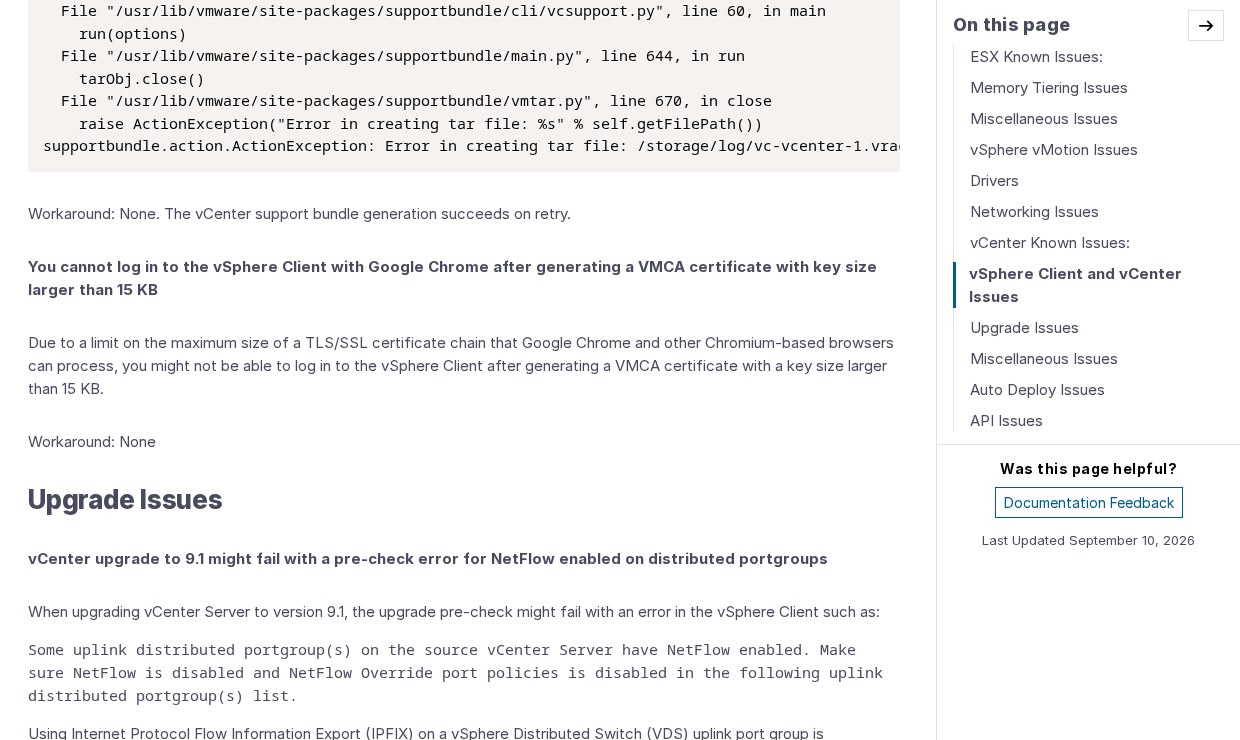
13. Upgrade pre-check fails on NetFlow-enabled uplink port groups
What you see:
Some uplink distributed portgroup(s) on the source vCenter Server have NetFlow enabled.
Make sure NetFlow is disabled and NetFlow Override port policies is disabled in the
following uplink distributed portgroup(s) list.
Root cause: IPFIX on a vSphere Distributed Switch uplink port group is deprecated in VCF 9.1. The pre-check blocks the upgrade while it is enabled. Environments running VCF Operations for Networks (formerly vRNI) hit this most, because it re-enables NetFlow on the VDS automatically.
Workaround: disable NetFlow and the NetFlow override policy on the listed uplink port groups – and pause the tool that keeps switching it back on – then re-run the pre-check. See Broadcom KB 441813.
Quick audit before the window:
PS> Get-VDSwitch | Get-VDPortgroup |
    Where-Object { $_.Extensiondata.Config.DefaultPortConfig.IpfixEnabled.Value -eq $true } |
    Select Name, VDSwitch
14. Two disks backing /storage/dblog after an in-place upgrade
What you see: after an in-place upgrade from vCenter 9.0 to 9.1, /storage/dblog and /storage/lifecycle each appear to be backed by two disks.
Root cause: a change in PostgreSQL Write-Ahead Log behaviour could fill /storage/dblog on long-running appliances, so 9.1 doubles that partition across all deployment sizes – 25 GB to 50 GB on large. The upgrade repurposes the old /storage/vtsdblog volume and adds its capacity rather than resizing in place.
Workaround: none needed. This is expected and requires no action – do not "clean up" the extra disk.
15. The GUI installer refuses a 9.x to 9.1 upgrade
What you see:
Source version is 9.0.0 and the installer version is 9.0. Supported version for upgrade is 8.0.Root cause: the vCenter GUI installer is scoped to 8.x → 9.x migrations only. Moving between 9.x releases is a lifecycle operation, not an installer one.
Workaround: use the GUI installer only for 8.x to 9.x. For 9.0 to 9.1, drive the update from VCF Operations or the appliance update workflow. Related: if a CLI upgrade fails, staged files including a ~9 GB OVA are deliberately left in /storage/lifecycle/vlcm/ on the source vCenter so a retry is fast. Delete them manually only if you are not retrying.
16. Odds and ends worth noting
- False positive licensing alarm. After an upgrade you may see
License assignment failed for this host. The entitlement format changed between 9.0 and 9.1; the license is applied but not auto-acknowledged. Confirm the host is licensed and acknowledge the alarm. - vpxd OOM on very large inventories.
Memory exceeds hard limit. Panicafter roughly three days of uptime, with in-flight operations failing. The service restarts itself and vCenter recovers. - Support bundle tar failures. A read/write race produces
unexpected end of dataandActionException: Error in creating tar file. Retry – generation succeeds on the second run. - Chrome login failure. A VMCA certificate with a key size over 15 KB exceeds the TLS chain size Chromium browsers accept, and vSphere Client login fails. No workaround other than a smaller chain.
- Stale tokens after breaking Enhanced Link Mode. Linking vCenter in VCF Operations fails, and
/var/log/vmware/vapi/endpoint/endpoint.logshows'ActAs' token is invalid!. Restartvmware-vapi-endpointandvmware-vpxdwithservice-control --restart, remove the vCenter from linking, and re-add it. - QAT boot times. Intel Xeon 6 systems using QAT accelerators can take noticeably longer to boot ESX 9.1. A fix is expected in a future patch.
A short field note
The first time I was bitten by a known-issues entry, it was a NetFlow pre-check exactly like number 13 – except I had not read the list. We had a four-hour window, the pre-check failed at minute twenty, and I spent the next forty minutes clicking through uplink port groups in the vSphere Client wondering why the setting kept coming back. It came back because the network monitoring platform was re-applying it. We disabled NetFlow, paused the collector, re-ran the pre-check and finished with time to spare – but only because someone on the call remembered that vRNI does that.
That is the whole value of the known issues page. None of these entries is a disaster on its own. Every one of them is an hour of your maintenance window if you meet it for the first time at 02:00.
Before your next upgrade
- Audit uplink port groups for IPFIX and pause whatever re-enables it.
- Confirm the upgrade order: VCF Operations before vCenter, then ESX.
- Check DRAM headroom on memory-tiered clusters and keep DRAM-only VMs off them.
- Verify NVMe redundancy on any host using Memory Tiering.
- Standardise uplink counts across distributed switches carrying accelerated workloads.
- Confirm RoCE QoS on the fabric if you run RDMA.
If you want the other side of the story, read our breakdown of the VCF 9.1 vSphere resolved issues – the bugs this release actually fixed.