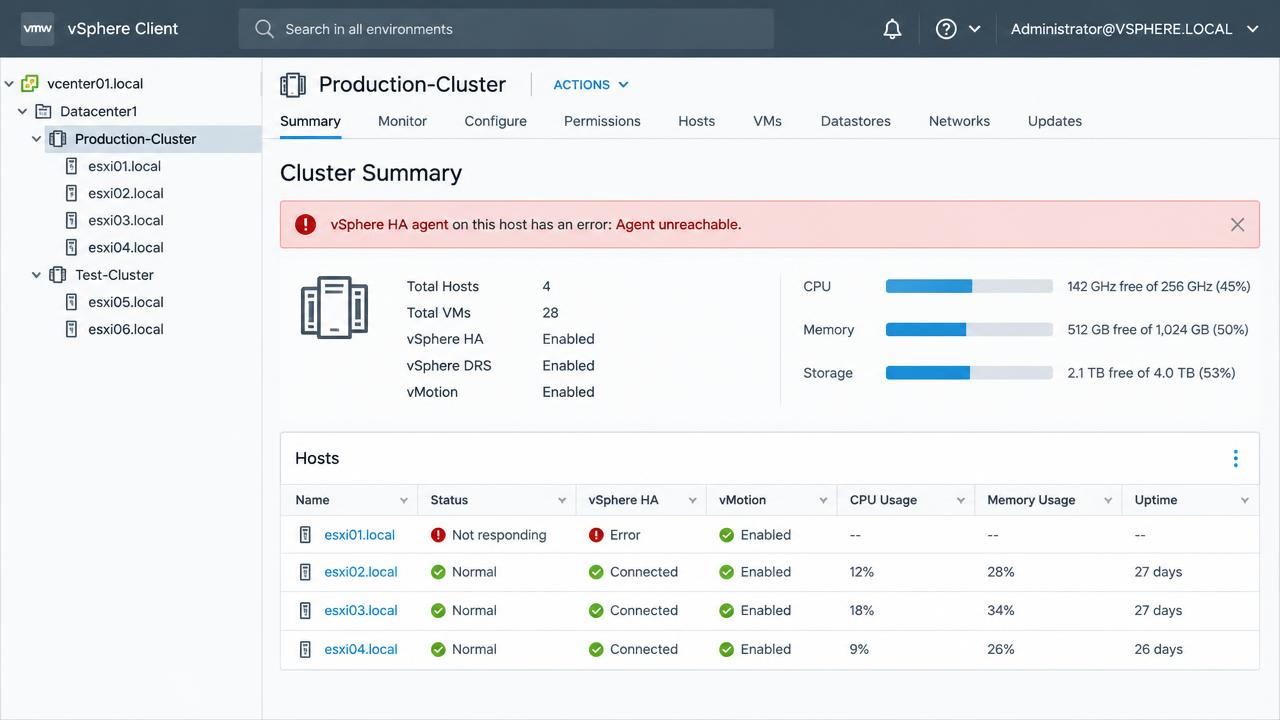
vSphere HA agent on this host has an error: Agent unreachable is the error that generates the most unnecessary cluster rebuilds. In the majority of cases nothing is wrong with high availability itself – the Fault Domain Manager agent simply cannot complete its election or heartbeat exchange because of a name-resolution, firewall, or management-network problem. This article explains how HA actually works, then gives a fault-tree you can follow to a root cause instead of guessing.
How vSphere HA works under the hood
When you enable HA on a cluster, vCenter pushes the FDM agent (vmware-fdm VIB) to every host. The hosts then hold an election: one becomes the master, the rest are slaves. The master monitors the state of every VM in the cluster, holds the protected-VM list, and reports to vCenter. Slaves send heartbeats to the master over the management network every second, and the master heartbeats to datastores as a secondary channel.
Three signals determine whether a host is considered failed:
- Network heartbeat on the management VMkernel interface.
- Datastore heartbeat – the master looks for the host's lock on heartbeat files in
.vSphere-HAfolders on selected datastores. - Isolation address pings – if a host loses network heartbeats, it pings its isolation addresses (the management gateway by default) to decide whether it is isolated or the rest of the cluster has failed.
Understanding these three channels tells you exactly what to test when the agent misbehaves.
Step 1: separate two different failures
Look at the host's connection state in the inventory before anything else:
- Host connected, HA agent in error – vCenter can talk to
hostd, so management networking and credentials are fine. The problem is FDM-specific: agent install, host-to-host communication, DNS, or firewall ports. - Host not responding and HA agent unreachable – this is a host or management-network problem. Fix connectivity first; the HA error is a symptom.
Step 2: reconfigure HA on the host
The cheapest fix, and the correct first attempt: right-click the host → Reconfigure for vSphere HA. This reinstalls and restarts the FDM agent. If it fails, read the task error carefully – it usually names the actual problem ("cannot install the vCenter agent service", "operation timed out", "cannot complete the configuration of the HA agent").
From the host command line you can drive the same thing and watch the result:
/etc/init.d/vmware-fdm status
/etc/init.d/vmware-fdm restart
tail -f /var/log/fdm.log
Step 3: prove name resolution in both directions
FDM identifies peers by name. Every host must resolve every other host and vCenter, forward and reverse, consistently. This single check resolves a large share of cases:
hostname -f
nslookup esxi01.lab.local
nslookup 10.10.10.11
esxcli network ip dns server list
esxcli network ip dns search list
cat /etc/hosts
Watch for: a host whose FQDN does not match its DNS record, a stale record left over from a rebuild, a reverse zone missing the PTR entry, or a management network where DNS servers are unreachable. Fixing DNS then reconfiguring HA is the complete fix – do not paper over it with /etc/hosts entries on some hosts but not others.
Step 4: check the firewall and required ports
FDM needs TCP and UDP 8182 open between all hosts in the cluster, plus 902 to vCenter. On the host:
esxcli network firewall ruleset list | grep -i fdm
esxcli network firewall ruleset set --ruleset-id fdm --enabled true
esxcli network firewall get
If hosts sit in different VLANs or behind a firewall – a common design in stretched or DMZ clusters – verify 8182 both ways with nc -z from the ESXi shell. Asymmetric rules where traffic passes one direction only produce exactly the "agent unreachable" symptom.
Step 5: verify management networking and isolation addresses
Confirm the management VMkernel interface, its vSwitch uplinks, and its ability to reach the isolation address:
esxcli network ip interface ipv4 get
esxcli network nic list
vmkping -I vmk0 10.10.10.1
vmkping -I vmk0 -s 1472 -d 10.10.10.12   # MTU sanity check
If your management network has no reachable gateway – some isolated lab and edge designs do not – set explicit isolation addresses in cluster advanced options (das.isolationaddress0, das.isolationaddress1) and, if the gateway should not be used, das.usedefaultisolationaddress = false. Two isolation addresses on separate physical paths is the resilient configuration.
Step 6: look at datastore heartbeating
HA selects two heartbeat datastores by default. In clusters where all storage is on one array, or where hosts do not share datastores uniformly, heartbeating degrades and false isolation events follow. Check the cluster's Monitor → vSphere HA → Heartbeat view, and where the selection is poor, pin appropriate datastores via Datastore Heartbeating preferences. On all-vSAN clusters this behaves differently – vSAN clusters heartbeat over the vSAN network, so the vSAN network health is the thing to verify.
Step 7: when the agent still will not install
If reconfigure keeps failing with an install error, the FDM VIB itself may be in a bad state or the host's /tmp or bootbank may be full:
vdf -h                       # look for full ramdisks
esxcli software vib list | grep -i fdm
esxcli software vib remove -n vmware-fdm
# then Reconfigure for vSphere HA from vCenter to push a fresh copy
A full /tmp ramdisk or an exhausted bootbank on hosts booting from small SD/USB devices is a frequent underlying cause. Clean up, then reconfigure.
Sanity-check the cluster design while you are there
- Admission control – set it to a percentage-based policy sized for at least one host failure; the default cluster resource percentage recalculates as hosts are added.
- Host isolation response – "Power off and restart VMs" is the safe default for most shared-storage clusters; "Leave powered on" risks split-brain only in specific designs.
- Redundant management networking – two uplinks on the management portgroup, ideally on separate physical switches, removes the most common isolation trigger.
- VM monitoring – enable it if you want HA to restart guests whose VMware Tools heartbeat stops, not just guests on failed hosts.
- Test it – pull the management uplinks on one host in a maintenance window and watch the cluster behave. An untested HA cluster is a hope, not a control.
Fault tree summary
- Host not responding too? Fix host connectivity first.
- Reconfigure for vSphere HA and read the exact task error.
- Prove forward and reverse DNS from every host.
- Confirm TCP/UDP 8182 between hosts and 902 to vCenter.
- vmkping the gateway and the other hosts' management interfaces, including at your configured MTU.
- Review heartbeat datastore selection.
- Check ramdisk space, then remove and reinstall the FDM VIB.
Follow the list in order and the cause reveals itself – disabling and re-enabling HA on the whole cluster, the usual reflex, only hides a fault that will return during the outage you built HA to survive.
What the FDM log tells you
Every host runs its own FDM log at /var/log/fdm.log, and it is more explicit than the vCenter task error. Restart the agent and read the election sequence live:
tail -f /var/log/fdm.log &
/etc/init.d/vmware-fdm restart
A healthy start shows the agent loading its configuration, contacting peers, and either declaring itself master or joining an existing master. The failure modes read very differently. "Failed to connect to peer" with an IP address names exactly which host is unreachable – test that path specifically. "Unable to resolve hostname" is your DNS check, confirmed. "No heartbeat datastores" means storage selection failed and the cluster is relying on the network channel alone. "Timeout waiting for master" in a cluster where another host claims to be master usually means a partition: two groups of hosts can each see themselves but not each other, which points at a VLAN, trunk or switch-stack problem rather than anything host-specific.
Understanding partitions and isolation
A partition is when hosts split into groups that can each communicate internally but not across the divide; an isolated host cannot reach any peer or its isolation address. vCenter reports both under cluster monitoring, and the distinction changes your investigation. Partitions almost always follow a network change – a new switch stack member, a modified trunk, a spanning-tree event, or a maintenance action on one side of a stretched cluster. Isolation of a single host is a host-level networking fault: a failed uplink, a wrong VLAN tag on the management portgroup, or a physical switch port misconfiguration.
Confirm the physical picture rather than trusting the diagram:
esxcli network nic list
esxcli network vswitch standard list
esxcli network vswitch dvs vmware list
esxcli network ip neighbor list          # ARP cache: who can this host see?
Advanced options worth knowing
| Option | Purpose | When to use |
|---|---|---|
das.isolationaddress0/1 | Additional ping targets for isolation detection | Management gateway is unreliable or absent |
das.usedefaultisolationaddress | Disable the default gateway as a target | Gateway does not respond to ICMP |
das.heartbeatDsPerHost | Number of heartbeat datastores per host | Larger clusters with diverse storage |
das.ignoreRedundantNetWarning | Suppress the single-uplink warning | Lab or design where redundancy is intentional elsewhere |
das.config.fdm.isolationPolicyDelaySec | Delay before isolation response executes | Networks with slow convergence after a switch event |
Add options at cluster level under Configure → vSphere Availability → Edit → Advanced Options, then reconfigure HA on all hosts so the change is applied. Document each one you set; undocumented advanced options are a recurring source of confusion during later incidents.
Validating the fix properly
After the agent reports connected, do not close the ticket on a green icon alone. Confirm the cluster's protected-VM state under Monitor → vSphere HA → Summary, verify that heartbeat datastores are selected, and check that admission control reports enough failover capacity. Then, in a maintenance window, run a real test: disconnect the management uplinks on one host and confirm its VMs restart elsewhere within the expected window. A cluster that passes that test has working HA; a cluster with green icons only has working icons.