You browse to the vSphere Client and get 503 Service Unavailable (Failed to connect to endpoint), or the client loads and then throws you out. The vCenter Server Appliance is running – it pings, it accepts SSH – but vmware-vpxd refuses to start. This is one of the most common vCenter faults in the field, and it is nearly always caused by one of five conditions: a full disk, an expired certificate, clock skew, a corrupted or full vPostgres database, or a dependency service such as VMware Directory Service failing to come up first.
This guide gives you a deterministic order to work through, with the commands to prove or eliminate each cause.
Understand the service dependency chain
The appliance runs a stack of services that start in order. If a lower service fails, everything above it fails with symptoms that look unrelated:
- vmafdd – Authentication Framework Daemon; holds the certificate store (VECS).
- vmdird – VMware Directory Service; the LDAP store behind vCenter Single Sign-On.
- vmcad – Certificate Authority.
- vmware-vpostgres – the embedded database.
- vmware-vpxd – the vCenter core service that the client talks to.
- Then the dependent services: content library, ESX agent manager, vSphere UI, vAPI endpoint, and so on.
Always fix the lowest failing service in the chain first. Restarting vpxd in a loop while vmdird is down accomplishes nothing.
Step 1: get a shell and read the service state
SSH to the appliance as root. If the shell drops you into the appliance shell, switch to bash:
shell
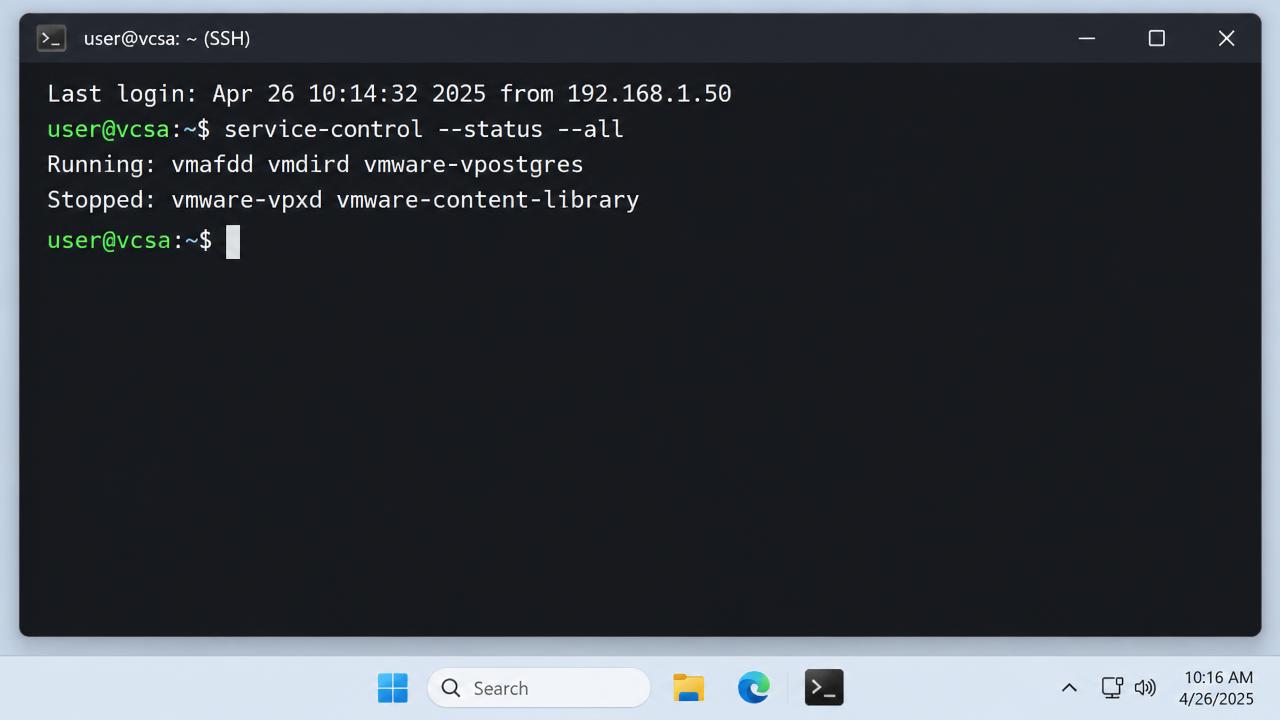
service-control --status --all
service-control --start --all      # only after you have read the state
Note exactly which services are stopped. Then look at the startup log for the first failure, not the last:
tail -n 200 /var/log/vmware/vpxd/vpxd.log
tail -n 200 /var/log/vmware/vmdird/vmdird-syslog.log
tail -n 200 /var/log/vmware/vpostgres/postgresql-*.log
grep -i "error\|failed" /var/log/vmware/vmware-vmon/vmond.log | tail -50
Step 2: check disk space – the single most common cause
A full /storage/db, /storage/log, /storage/seat or /storage/archive partition will stop vPostgres and therefore vpxd. Check every mount:
df -h
du -sh /storage/log/* | sort -h | tail
du -sh /storage/seat/* | sort -h | tail
If a partition is at 100%, do not start deleting database files. Safe actions are: clear old log bundles under /storage/log/vmware/, remove old *.tar.gz support bundles, and clear /storage/core/ of old dumps. Then grow the disk properly – expand the virtual disk in the inventory of another vCenter or directly on the ESXi host, then run:
/usr/lib/applmgmt/support/scripts/autogrow.sh
df -h
Long term, the real fix is retention: reduce statistics levels, shorten task/event retention in vCenter settings, and enable log rotation to a syslog target so /storage/log never becomes the failure point again.
Step 3: validate certificates
Expired machine SSL or solution-user certificates stop services from authenticating to each other. List the store and check expiry:
/usr/lib/vmware-vmafd/bin/vecs-cli store list
for s in MACHINE_SSL_CERT machine vpxd vpxd-extension vsphere-webclient; do
  echo "== $s"
  /usr/lib/vmware-vmafd/bin/vecs-cli entry list --store $s --text | grep -E "Not After|Subject:"
done
/usr/lib/vmware-vmca/bin/certificate-manager
If a certificate has expired, certificate-manager option 8 (replace all with VMCA-generated certificates) is the fastest recovery path for an internally trusted deployment. Take a snapshot of the appliance while it is powered off – or at minimum a full backup – before running it. Certificate replacement rewrites the solution users; an interrupted run leaves the appliance in a worse state than you started.
Step 4: check time synchronisation
Kerberos and certificate validation both fail with skew of more than a few minutes. Compare the appliance to its NTP source and to the ESXi host running it:
date -u
chronyc sources -v        # or: ntpq -p on older appliances
systemctl status chronyd
If the appliance is set to synchronise with the ESXi host, and that host itself drifted, both will be wrong together. Point the appliance at reliable NTP servers directly, and make sure UDP 123 is permitted outbound from the management network.
Step 5: inspect the embedded database
If vPostgres is running but vpxd still exits, look for database errors in vpxd.log such as Unable to connect to the database or a failed schema upgrade after a patch. Useful checks:
service-control --status vmware-vpostgres
/opt/vmware/vpostgres/current/bin/psql -U postgres -d VCDB -c "select count(*) from vpx_entity;"
grep -i "database" /var/log/vmware/vpxd/vpxd.log | tail -40
A database that will not open after a storage outage is a restore scenario, not a repair scenario. Use the appliance's file-based backup (VAMI on port 5480 → Backup) to restore to a fresh appliance deployment. This is why the backup schedule matters more than any troubleshooting skill you can build.
Step 6: use VAMI when the main client is dead
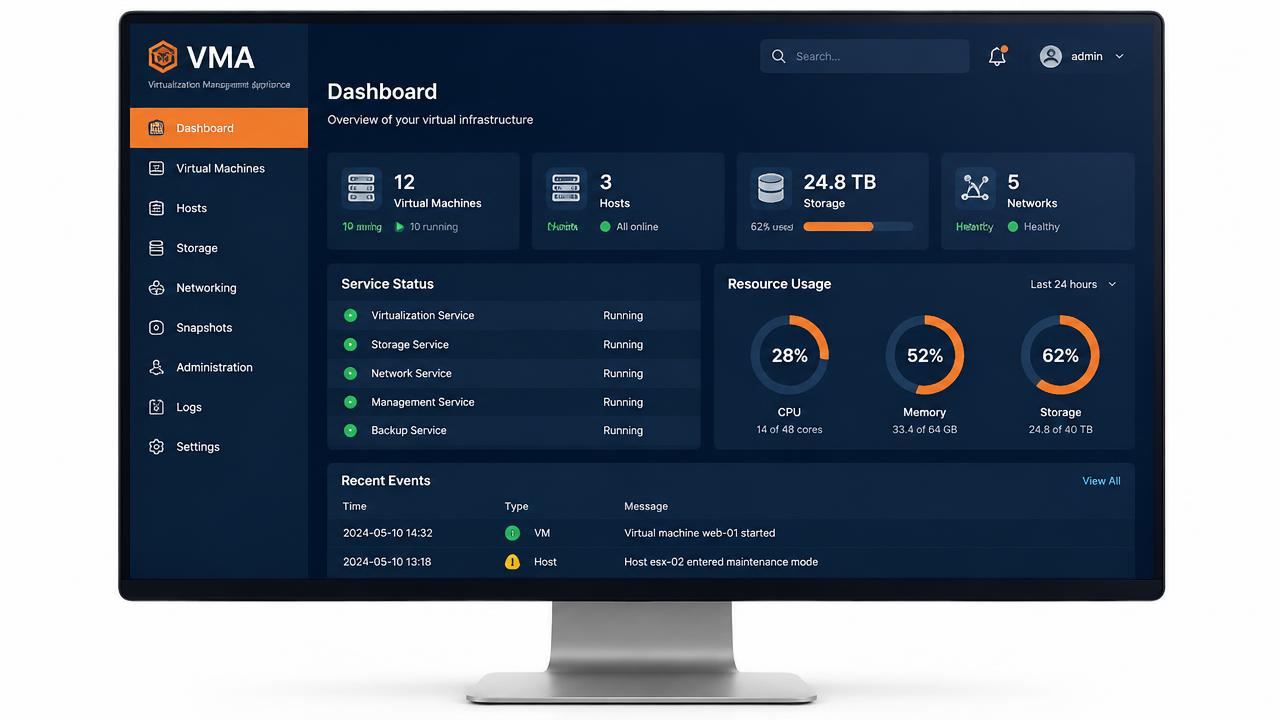
Browse to https://vcenter-fqdn:5480. Even with vpxd down, VAMI usually loads and gives you: partition usage graphs, service health, the ability to start and stop services, network configuration, and backup/restore. It is also where you check whether a recent patch failed mid-way, which leaves services disabled by design until the update is completed or rolled back.
Recovery decision table
| Evidence | Root cause | Action |
|---|---|---|
Partition at 100% in df -h | Disk exhaustion | Clear logs/cores, expand disk, run autogrow, fix retention |
| "Not After" date in the past | Expired certificate | certificate-manager, replace with VMCA certificates |
| Clock differs by minutes | Time skew | Fix NTP on appliance and hosts |
| vmdird stopped, vpxd cannot authenticate | Directory service failure | Repair vmdird first; check /storage/db/vmware-vmdir space |
| vPostgres will not open VCDB | Database corruption | Restore from file-based backup to a new appliance |
| Services disabled after patching | Interrupted upgrade | Re-run the update from VAMI or roll back to the pre-patch snapshot |
Hardening checklist
- Schedule file-based backups to an SFTP/NFS target and test a restore at least annually.
- Alert on partition usage above 75% for
/storage/db,/storage/seatand/storage/log. - Track certificate expiry dates in your monitoring, with 60-day warnings.
- Give the appliance the same reliable NTP sources as your domain controllers.
- Never power off the appliance abruptly; use guest shutdown so vPostgres closes cleanly.
- Keep a documented, tested DNS forward and reverse record – broken name resolution produces the same 503 symptoms.
Worked in this order, most vCenter service failures resolve within thirty minutes, and the ones that do not are the ones your backup strategy was written for.
Reading vpxd.log like an engineer, not a search engine
Copying an error string into a search box is the reflex, but vpxd.log rewards a few minutes of structured reading. The log is written in order of startup, so the first error line after a restart is nearly always the causal one, and everything below it is fallout. A useful pattern is to restart the service and watch the log live in a second session:
service-control --stop vmware-vpxd
tail -f /var/log/vmware/vpxd/vpxd.log &
service-control --start vmware-vpxd
Three signatures come up repeatedly. "Failed to intialize VMware VirtualCenter" immediately followed by a database line means vPostgres is reachable but the schema or credentials are wrong – typical after a partially applied patch. "SSL Handshake failed" against the lookup service points at certificates or time. "Unable to create SSO facade" means vmdird is not answering, and you should be troubleshooting the directory service rather than vpxd at all.
Single Sign-On and lookup service checks
When authentication is the failing layer, verify that the directory service holds a healthy database and that the lookup service registrations still match the appliance's current name and IP. A rename or IP change performed without the supported procedure leaves stale registrations behind, and every dependent service then fails to resolve its endpoint:
/usr/lib/vmware-vmafd/bin/dir-cli nodes list \
  --login administrator@vsphere.local
/usr/lib/vmware-vmafd/bin/vmafd-cli get-ls-location --server-name localhost
python /usr/lib/vmidentity/tools/scripts/lstool.py list \
  --url http://localhost:7080/lookupservice/sdk 2>/dev/null | grep -i "URL:" | sort -u
Every URL returned should use the appliance's current FQDN. If you find the old name, the registrations must be corrected before services will start reliably – in an enhanced-linked-mode topology, check the partner nodes as well, because a stale entry on one node produces intermittent failures across the whole SSO domain.
Enhanced Linked Mode and replication
In multi-node deployments, replication failures between directory instances cause services to start on one node and not another. Check partner state and replication lag:
/usr/lib/vmware-vmdir/bin/vdcrepadmin -f showpartnerstatus \
  -h localhost -u administrator -w '<password>'
/usr/lib/vmware-vmdir/bin/vdcrepadmin -f showservers \
  -h localhost -u administrator -w '<password>'
A node that is many changes behind, or that lists a decommissioned peer, needs the stale node removed with cmsso-util unregister before the domain will behave. Removing a failed node properly is far cheaper than repairing an SSO domain that has been half-broken for months.
When to stop troubleshooting and restore
Set a time budget before you start. If, after ninety minutes, you have not identified a specific fault with a specific fix, a restore from the most recent file-based backup will almost always return service faster than continued investigation – and it leaves you with a clean appliance rather than one carrying half-applied repairs. Deploy a new appliance of the same version, choose Restore during deployment, point it at your backup location, and let it rebuild. Keep the broken appliance powered off rather than deleted, so you can still collect logs for root-cause analysis afterwards.